


psvita home screen

A )
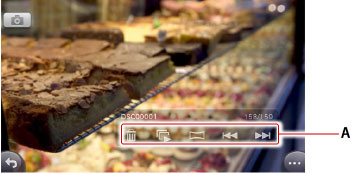
 (Delete) /
 (Slideshow) /
 (Back) /
 (Next)
Tap these buttons to perform these operations.
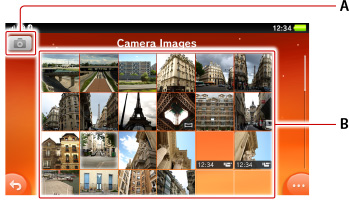
 (Viewing Mode)
Tap the icon to switch to viewing mode, where you can browse and view photos and other images.B )
(Location Data) /
(Switch Cameras) /
(Switch Image Size)
The
(Location Data) is displayed when the setting for using location data on your PS Vita system is turned on. Tap
(Location Data) to obtain and use the location data. Your PS Vita system finds your location using Wi-Fi access points, GPS satellites* and cell phone base stations*. When your system finds your location, the location data icon turns green (
). When you take a photo, your location is added to information stored in the photo file. *Only used on 3G/Wi-Fi models C )
(Shutter)
Tap the icon to take a photo.D )The most recent photo
Tap the thumbnail to switch to viewing mode and view the photo on the full screen.

Browser
Trophies


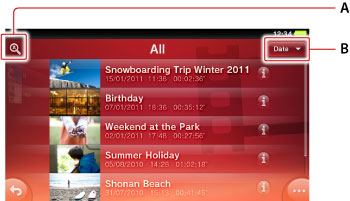
(Scene Search)
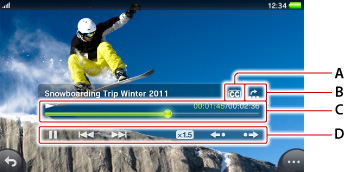
Use Scene Search to find a specific scene in a video. Tap the Scene Search icon to display thumbnails for chapters and time intervals. Flick the scene thumbnails to find the scene you want to watch, and then tap the thumbnail to play the scene.
Tap
(Left) and
(Right) to change the scene-search interval.B )Progress bar
Tap the desired location on the progress bar, or drag the knob to that location.C )
(Return to Beginning) /
(Play) /
(Pause) /
(Instant Replay) /
(Instant Advance)
Tap the icons to control video playback.
Tap
(Instant Replay) or
(Instant Advance) to move to a place 15 seconds back or forward in the video.
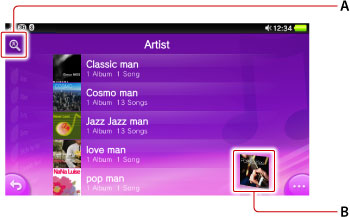
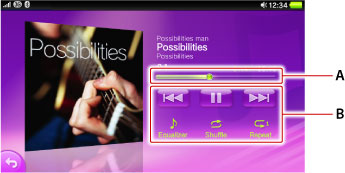
A )Progress bar
Tap the desired location on the progress bar, or drag the knob to that locationB )
(Back) /
 (Play) /
 (Pause) /
(Next) /
(Pause) /
(Next) /
 (Equalizer) /
 (Shuffle) /
 (Repeat)
Tap the icons to control playback of a song.
Touch
(Back) and
(Next) to fast-rewind and fast-forward.
[TABLE="class: marginTop02"]
[TR]
[TD][/TD]
[/TR]
[TR]
[TD][/TD]
[/TR]
[TR]
[TD][/TD]
[/TR]
[TR]
[TD][/TD]
[/TR]
[TR]
[TD][/TD]
[/TR]
[TR]
[TD][/TD]
[/TR]
[/TABLE]
Bluetooth® Settings
[TABLE="class: marginTop02"]
[TR]
[TH]
 [/TH]
[/TH]
[TD="align: center"]Computer[/TD]
[/TR]
[TR]
[TH]
 [/TH]
[/TH]
[TD="align: center"]Cell phone, smart phone[/TD]
[/TR]
[TR]
[TH]
 [/TH]
[/TH]
[TD="align: center"]Headset[/TD]
[/TR]
[TR]
[TH]
 [/TH]
[/TH]
[TD="align: center"]Speakers[/TD]
[/TR]
[TR]
[TH]
 [/TH]
[/TH]
[TD="align: center"]Mouse[/TD]
[/TR]
[TR]
[TH]
 [/TH]
[/TH]
[TD="align: center"]Keyboard[/TD]
[/TR]
[TR]
[TH]
 [/TH]
[/TH]
[TD="align: center"]Printer[/TD]
[/TR]
[TR]
[TH]No icon[/TH]
[TD="align: center"]Other devices[/TD]
[/TR]
[/TABLE]

- درود
با توجه به اینکه psvita به زودی عرضه جهانی می شه و قطعا دوستان زیادی هم منتظر این شاهکار سونی هستند این تاپیک ایجاد کردیم تا بچه ها با منو ها و بعضی امکانات این دستگاه بیشتر آشنا بشوند .
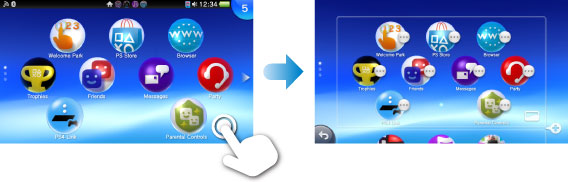
خوب داخل منوی دستگاه ایکون های مثل Settings--Content Manager-Party-Remote Play-Videos-Music-Photos-Trophies-Friends--PS Store http://manuals.playstation.net/document/en/psvita/party/index.htmlhttp://manuals.playstation.net/document/en/psvita/party/index.htmlو ...........وجود دارد و امکانات تقریبا بینظیری به جز بازی کردن را به شما می دهد
 Party
Party  PS Store
  near
near - Friends
 Group Messaging
 - Trophies
- Photos
- Browser
 Music
Music - Videos
 Remote Play
  Content Manager
  Settings
Viewing photos
A )
Tap these buttons to perform these operations.
Taking photos
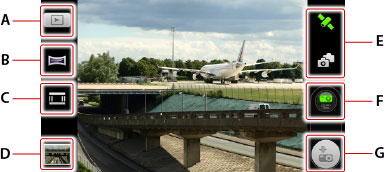

Tap the icon to switch to viewing mode, where you can browse and view photos and other images.B )


The


Tap the icon to take a photo.D )The most recent photo
Tap the thumbnail to switch to viewing mode and view the photo on the full screen.
Viewing web pages
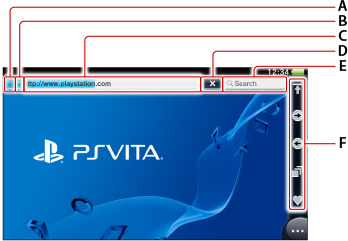
Address barB )
(Cancel) /
(Refresh)Tap to cancel opening a web page or to refresh the contents of an open web page.C )
(Displaying web page that uses SSL)
This icon appears when the web page supports SSL.
D )
(Web ******ing service in use)
This icon appears when a web ******ing service that blocks harmful sites is being used.E )
(Next) /
(Back) /
(Window) /
(Search) /
(Bookmarks)


This icon appears when the web page supports SSL.
D )

This icon appears when a web ******ing service that blocks harmful sites is being used.E )


Trophies
Watching videos and movies

Use Scene Search to find a specific scene in a video. Tap the Scene Search icon to display thumbnails for chapters and time intervals. Flick the scene thumbnails to find the scene you want to watch, and then tap the thumbnail to play the scene.
Tap


Tap the desired location on the progress bar, or drag the knob to that location.C )


Tap the icons to control video playback.
Tap
Settings
System update
[*=center]Update Using Wi-Fi
[*=center]Update by Connecting to a PS3™ System
[*=center]Update by Connecting to a PC
Network
[*=center]Flight Mode
[*=center]Wi-Fi Settings
[*=center]Bluetooth® Settings
[*=center]Mobile Network Settings
[*=center]Internet Connection Test
[*=center]Internet Connection Status
PlayStation®Network
[*=center]Sign Up
[*=center]Sign In/Sign Out
[*=center]Account Information
[*=center]Sub Account Management
[*=center]System Activation
[*=center]Privacy Settings
[*=center]Facebook
Application Data Management
[*=center]Saved data (PSP™/other)
[*=center]Add-On Data (PS Vita)
[*=center]Add-On Data (PSP™)
Sound & Display
[*=center]Brightness
[*=center]Notification Alert (PS Button)
[*=center]Notification Alert (Sound)
[*=center]System Music
[*=center]AVLS
Location Data
[*=center]Use Location Data
Security
[*=center]Parental Controls
[*=center]Screen Lock
Date & Time
[*=center]Date & Time Settings
[*=center]Time Zone
[*=center]Date Format
[*=center]Time Format
[*=center]Daylight Saving
Language
[*=center]System Language
[*=center]Input Languages
System
[*=center]System Information
[*=center]Auto-Start Settings
[*=center]USB Power Supply
[*=center]Usage
[*=center]Error History
[*=center]Intellectual Property Notices
[*=center]Google Maps : Terms of Use
Format
[*=center]Restore Start Screen Image
[*=center]Clear Learning Dictionary
[*=center]Format Memory Card
[*=center]Restore Settings
[*=center]Restore the PS Vita System
Power Save Settings
[*=center]Auto Standby
[*=center]
Listening to music
A )Progress bar
Tap the desired location on the progress bar, or drag the knob to that locationB )
Tap the icons to control playback of a song.
Touch
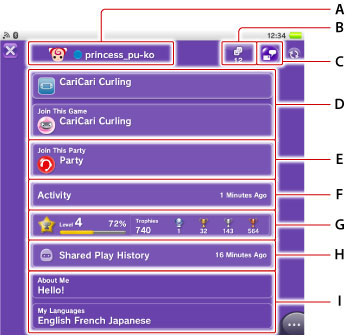
Viewing profiles
A )Avatar, status, and online ID
Statuses [TABLE="class: marginTop02"]
[TR]
[TH]
[/TH]
[TD]Online[/TD]
[/TR]
[TR]
[TH]
[/TH]
[TD]Offline[/TD]
[/TR]
[TR]
[TH]
[/TH]
[TD]Not available[/TD]
[/TR]
[TR]
[TH]
[/TH]
[TD]Playing a PlayStation®3 format software title[/TD]
[/TR]
[TR]
[TH]
[/TH]
[TD]Playing a PS Vita format software title[/TD]
[/TR]
[TR]
[TH]Game thumbnail[/TH]
[TD]Playing the game that has this thumbnail[/TD]
[/TR]
[/TABLE]
B )Friends list
The friend list and the share range for your own friend list will be displayed. If you are viewing another player’s profile, the friends list of the selected person appears. If the selected person has set privacy settings to make his or her friends list private, then
(Do Not Share) is displayed in place of the friends list button.
C )
(Group Messaging)
You can send messages using
(Group Messaging).D )Games being played
Information appears about the games the person is playing. When [Join This Game] is displayed on the profile screen of another player, tap this item to play the game with that player. To join a game, you must own the game.
E )Party
If a friend has joined a party in
(Party), this item is displayed. When [Join This Game] is displayed on the profile screen of another player, tap this item to join the party that player has joined. F )Activity
Tap [Activity] to view information about activities, such as the stages completed in games and the trophies earned. Activities also appear in the communication zone of a game's LiveArea™ screen. If the selected person has set privacy settings to make his or her activities private, then this information is not displayed.
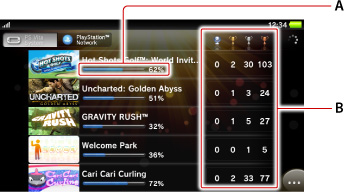
G )Trophies
The current game level, degree of progress to the next level, and trophies earned by the person are displayed. If you tap [Trophies],
(Trophies) starts so you can compare your trophies with those of your friend or another player.H )
(near)
Tap [near] to view information related to
(near), such as how many times you passed nearby a person you’ve played a game with, or the game that he/she played most recently.I )Shared Play History
Players with whom you have played online games, and information about the games played, appear.J )About Me/My Languages
You can edit this information in
(Settings) > [Start] > [PlayStation®Network] > [Account Information]. You can set the scope of information sharing for your friends list and activities from
(Settings) > [Start] > [PlayStation®Network] > [Privacy Settings].
Statuses [TABLE="class: marginTop02"]
[TR]
[TH]

[TD]Online[/TD]
[/TR]
[TR]
[TH]

[TD]Offline[/TD]
[/TR]
[TR]
[TH]

[TD]Not available[/TD]
[/TR]
[TR]
[TH]

[TD]Playing a PlayStation®3 format software title[/TD]
[/TR]
[TR]
[TH]

[TD]Playing a PS Vita format software title[/TD]
[/TR]
[TR]
[TH]Game thumbnail[/TH]
[TD]Playing the game that has this thumbnail[/TD]
[/TR]
[/TABLE]
- If you have not signed up for PlayStation®Network, you can change the user name that is displayed on your own profile screen by tapping (Friends) >
(User) > [Change Username].
- Tap (Options) on your profile screen to check and edit the account information of the PlayStation®Network account you are using on your PS Vita system.


B )Friends list
The friend list and the share range for your own friend list will be displayed. If you are viewing another player’s profile, the friends list of the selected person appears. If the selected person has set privacy settings to make his or her friends list private, then

C )

You can send messages using
Information appears about the games the person is playing. When [Join This Game] is displayed on the profile screen of another player, tap this item to play the game with that player. To join a game, you must own the game.
E )Party
If a friend has joined a party in

Tap [Activity] to view information about activities, such as the stages completed in games and the trophies earned. Activities also appear in the communication zone of a game's LiveArea™ screen. If the selected person has set privacy settings to make his or her activities private, then this information is not displayed.
G )Trophies
The current game level, degree of progress to the next level, and trophies earned by the person are displayed. If you tap [Trophies],


Tap [near] to view information related to
Players with whom you have played online games, and information about the games played, appear.J )About Me/My Languages
You can edit this information in

[TABLE="class: marginTop02"]
[TR]
[TD][/TD]
[/TR]
[TR]
[TD][/TD]
[/TR]
[TR]
[TD][/TD]
[/TR]
[TR]
[TD][/TD]
[/TR]
[TR]
[TD][/TD]
[/TR]
[TR]
[TD][/TD]
[/TR]
[/TABLE]
System Language
| Dansk | Danish |
|---|---|
| Deutsch | German |
| English (United Kingdom) | English (United Kingdom) |
| English (United States) | English (United States) |
| Español | Spanish |
| Français | French |
| Italiano | Italian |
| Nederlands | Dutch |
| Norsk | Norwegian |
| Polski | Polish |
| Português (Brasil) | Portuguese (Brazil) |
| Português (Portugal) | Portuguese (Portugal) |
| Pyccкий | Russian |
| Suomi | Finnish |
| Svenska | Swedish |
| 日本語 | Japanese |
| 한국어 | Korean |
| 简体中文 | Simplified Chinese |
| 繁體中文 | Traditional Chinese |
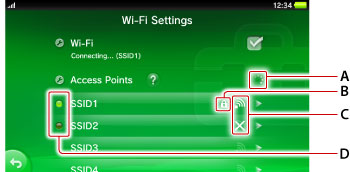
Wi-Fi Settings
Searching for access pointB )Security
When displayed, the security has been set for the access point. To connect the access point, you must enter the WEP or WPA key set on the access point.C )Signal strength of the access point
Signal strength is shown in four levels, including no signal.
When there are multiple saved access points, the system connects to the access point with the strongest signal.signal.D )Connection status
Connection status of saved access points [TABLE="class: marginTop02"]
[TR]
[TH]Lit[/TH]
[TD]connected[/TD]
[/TR]
[TR]
[TH]Blinking[/TH]
[TD]connecting[/TD]
[/TR]
[TR]
[TH]Out[/TH]
[TD]not connected[/TD]
[/TR]
[/TABLE]
When displayed, the security has been set for the access point. To connect the access point, you must enter the WEP or WPA key set on the access point.C )Signal strength of the access point
Signal strength is shown in four levels, including no signal.
When there are multiple saved access points, the system connects to the access point with the strongest signal.signal.D )Connection status
Connection status of saved access points [TABLE="class: marginTop02"]
[TR]
[TH]Lit[/TH]
[TD]connected[/TD]
[/TR]
[TR]
[TH]Blinking[/TH]
[TD]connecting[/TD]
[/TR]
[TR]
[TH]Out[/TH]
[TD]not connected[/TD]
[/TR]
[/TABLE]
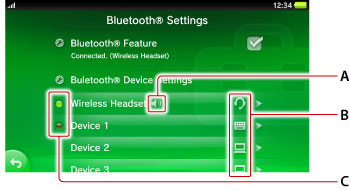
Bluetooth® Settings
[TR]
[TH]
[TD="align: center"]Computer[/TD]
[/TR]
[TR]
[TH]
[TD="align: center"]Cell phone, smart phone[/TD]
[/TR]
[TR]
[TH]
[TD="align: center"]Headset[/TD]
[/TR]
[TR]
[TH]
[TD="align: center"]Speakers[/TD]
[/TR]
[TR]
[TH]
[TD="align: center"]Mouse[/TD]
[/TR]
[TR]
[TH]
[TD="align: center"]Keyboard[/TD]
[/TR]
[TR]
[TH]
[TD="align: center"]Printer[/TD]
[/TR]
[TR]
[TH]No icon[/TH]
[TD="align: center"]Other devices[/TD]
[/TR]
[/TABLE]
A )Audio input/output status
Shows the audio input/output status for the Bluetooth® devices such as headset.B )Device icons
Shows the types of found Bluetooth® devices using icons. [TABLE="class: marginTop02"]
[TR]
[TH]
[/TH]
[TD]Computer[/TD]
[/TR]
[TR]
[TH]
[/TH]
[TD]Cell phone, smart phone[/TD]
[/TR]
[TR]
[TH]
[/TH]
[TD]Headset[/TD]
[/TR]
[TR]
[TH]
[/TH]
[TD]Speakers[/TD]
[/TR]
[TR]
[TH]
[/TH]
[TD]Mouse[/TD]
[/TR]
[TR]
[TH]
[/TH]
[TD]Keyboard[/TD]
[/TR]
[TR]
[TH]
[/TH]
[TD]Printer[/TD]
[/TR]
[TR]
[TH]No icon[/TH]
[TD]Other devices[/TD]
[/TR]
[/TABLE]
C )Connection status
Display the connection status of the registered Bluetooth® devices.
Shows the audio input/output status for the Bluetooth® devices such as headset.B )Device icons
Shows the types of found Bluetooth® devices using icons. [TABLE="class: marginTop02"]
[TR]
[TH]
[TD]Computer[/TD]
[/TR]
[TR]
[TH]
[TD]Cell phone, smart phone[/TD]
[/TR]
[TR]
[TH]
[TD]Headset[/TD]
[/TR]
[TR]
[TH]
[TD]Speakers[/TD]
[/TR]
[TR]
[TH]
[TD]Mouse[/TD]
[/TR]
[TR]
[TH]
[TD]Keyboard[/TD]
[/TR]
[TR]
[TH]
[TD]Printer[/TD]
[/TR]
[TR]
[TH]No icon[/TH]
[TD]Other devices[/TD]
[/TR]
[/TABLE]
C )Connection status
Display the connection status of the registered Bluetooth® devices.
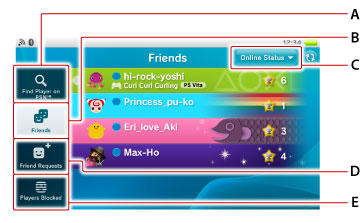
Friends
A )Your own informationB )Number of current friend requestsC )Information for friendsD )Waiting for a friend request to be accepted
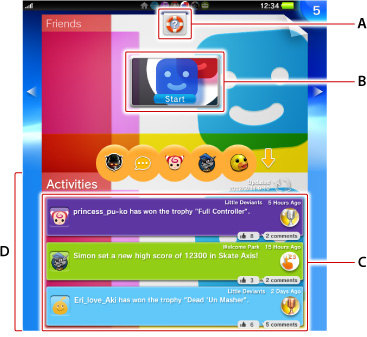
A )Action icons
Tap an action icon to perform the action assigned to the icon in the Friends application.B )Gate
Tap the gate to start the Friends application.
.
Tap an action icon to perform the action assigned to the icon in the Friends application.B )Gate
Tap the gate to start the Friends application.
.
آخرین ویرایش:














 Google